
Google Maps API key setup
This is the most critical step. WP Google Street View uses the Google Maps JavaScript API to render maps and Street View panoramas. You need a valid API key to make it work.
Good news
Google provides $200 per month in free credits for Maps API usage. For the vast majority of websites, this means you will never pay a cent. A typical WordPress site with moderate traffic uses less than $10/month in API calls.
Step 1: Enable the required APIs
Click the button below to enable all four required APIs in one step:
→ Enable Maps JavaScript, Geocoding, Directions & Places APIs
You will see the Google API Console screen. Select an existing project or create a new one, then click Continue.
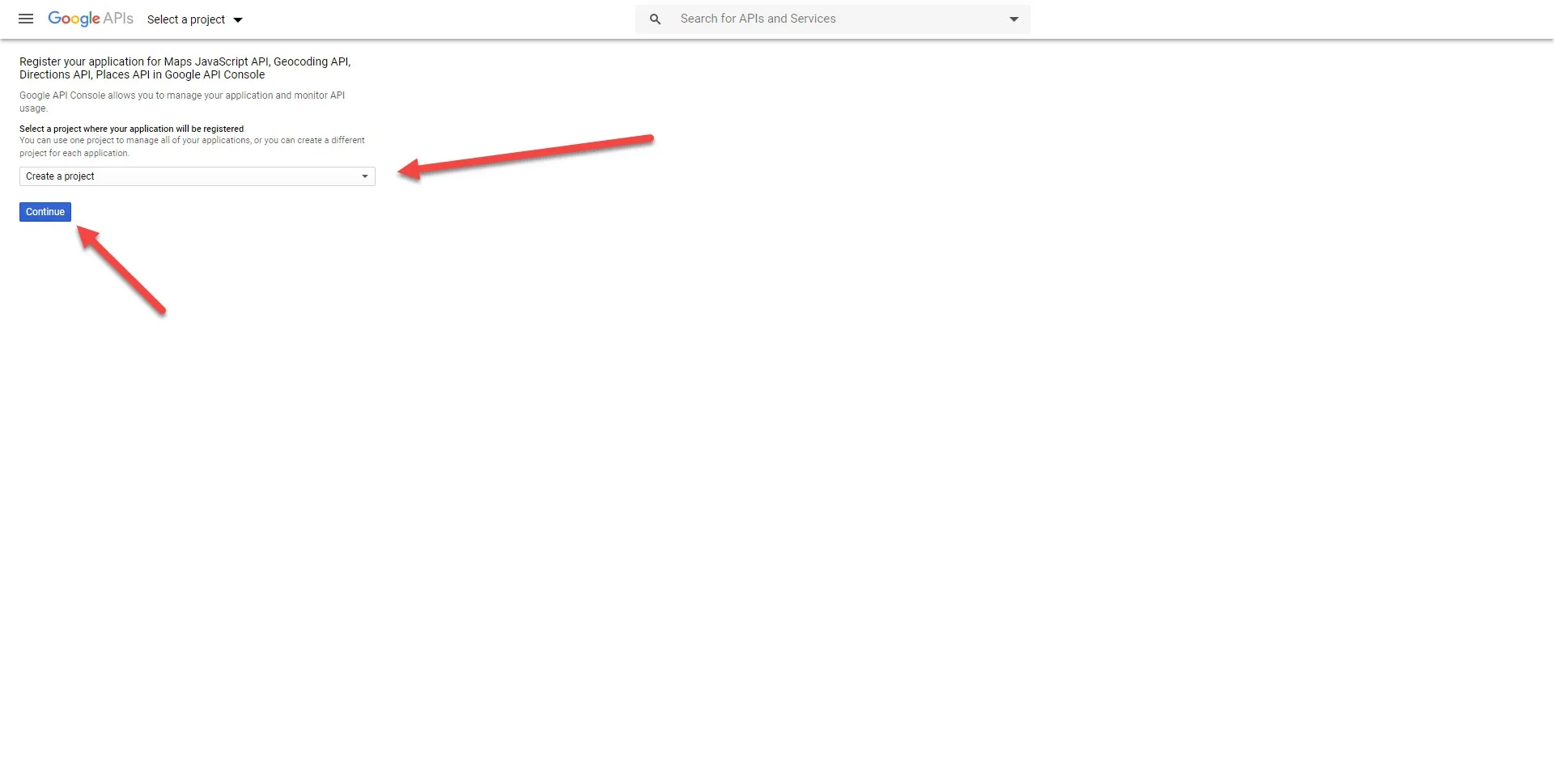
If this is your first project, give it a descriptive name like "My Website Maps" or your domain name.
Step 2: Create and name your API key
After enabling the APIs, Google will generate an API key. You can rename it for clarity (e.g., "WP Google Street View Key").
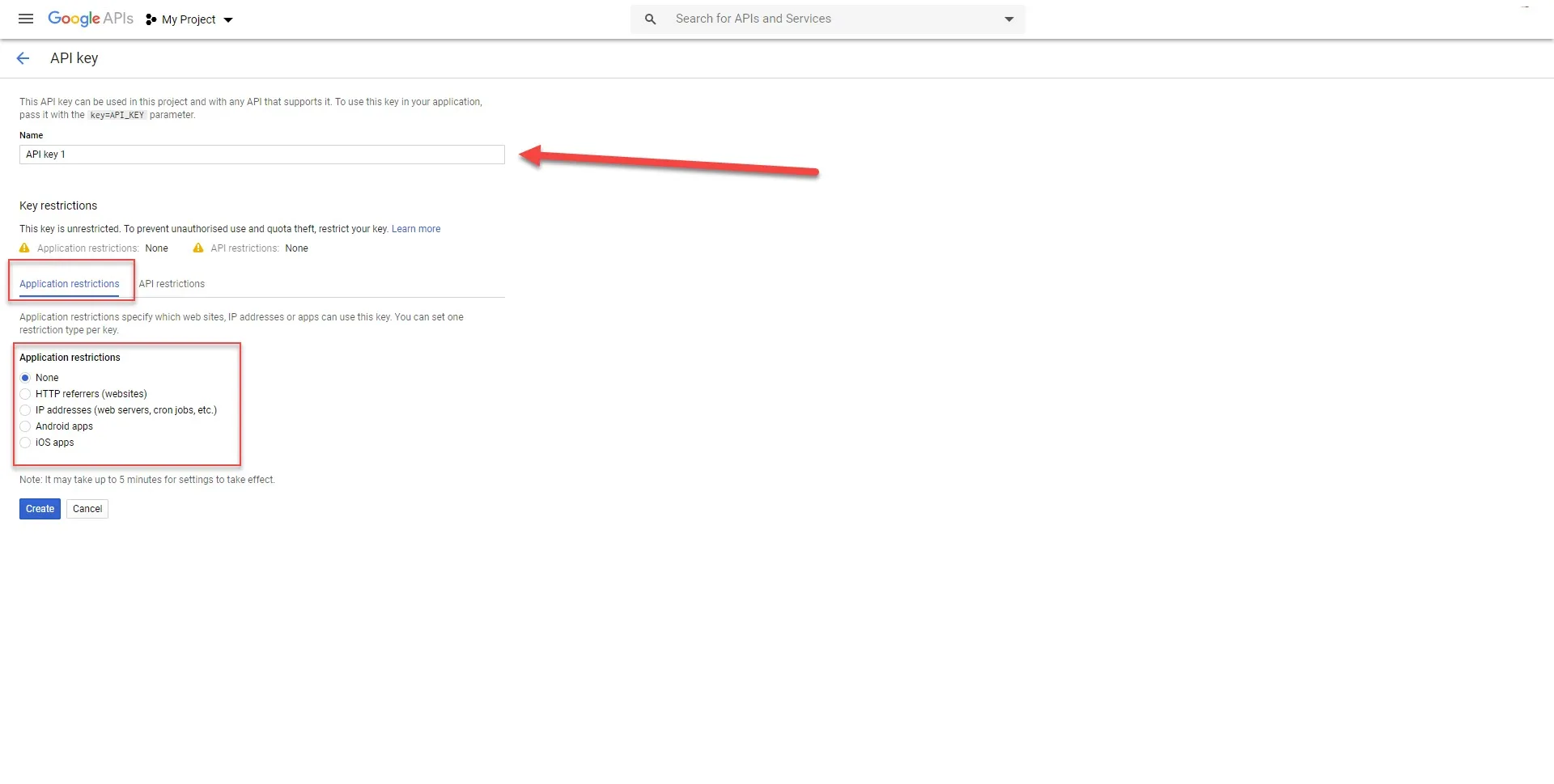
Set application restrictions
For security, restrict your key to HTTP referrers (websites) and add your domain:
https://yourdomain.com/*
https://www.yourdomain.com/*
Set API restrictions
Click the API restrictions tab and select the four APIs you enabled:
- Maps JavaScript API
- Places API
- Geocoding API
- Directions API
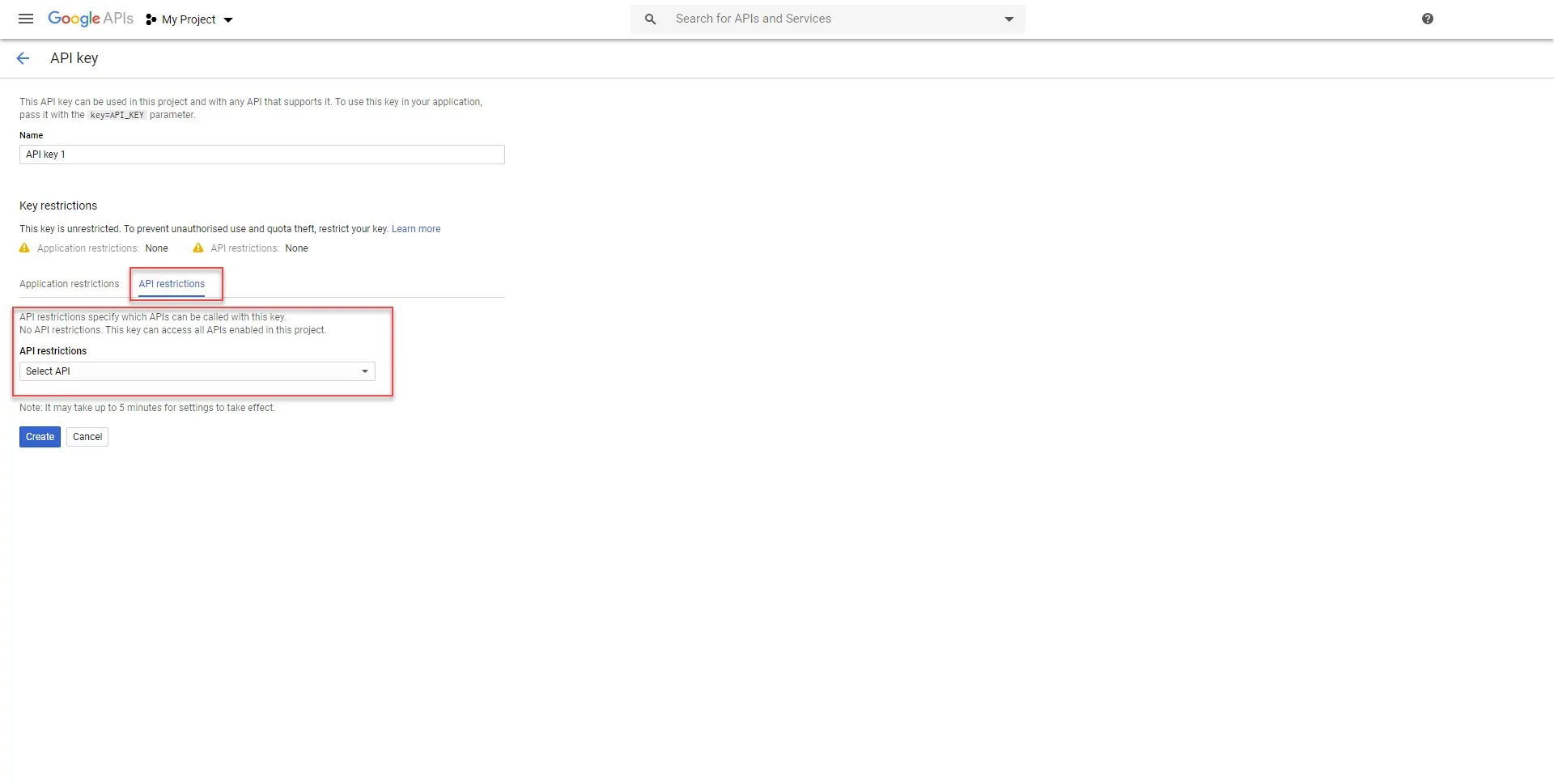
Click Create (or Save if editing an existing key).
Referrer-restricted keys are supported
WP Google Street View 1.1.13 and later use the Google Maps JavaScript geocoder path for admin address lookup. Keep the key restricted to HTTP referrers for normal browser usage; a separate server key is not required for the plugin’s standard admin lookup flow.
Important
It may take up to 5 minutes for restrictions to take effect. If your map does not load immediately after setup, wait a few minutes and clear your browser cache.
Step 3: Enable billing
Google requires a billing account to use the Maps APIs, even though they provide $200/month in free credits. This is to prevent abuse.
→ Enable billing on your Google Cloud project
Google offers a free trial with $300 in credits. After the trial, the $200/month Maps Platform free tier applies. For detailed pricing information, see our billing explained guide.
Step 4: Paste the key in WordPress
- In your WordPress admin, go to WP Google Street View → Settings.
- Paste your API key in the Google Maps API Key field.
- Click Save.
That's it. Your plugin is now connected to Google Maps.
Video walkthrough

Billing setup video

Troubleshooting
| Problem | Solution |
|---|---|
| Map shows "For development purposes only" | Your billing is not enabled. Enable it here. |
| Map shows "This page can't load Google Maps correctly" | Your API key is invalid or restricted incorrectly. Check the key restrictions. |
| Map loads on localhost but not on production | Add your production domain to the HTTP referrer restrictions. |
| "ApiNotActivatedMapError" in console | One or more required APIs are not enabled. Re-run the enable link. |